|| My Quipper Experience ||
Hi, welcome back to my blog! Online classes are about to start soon and I have received a few requests to make a blog about my experience on using Quipper. I know that this may seem new and some might be overwhelmed by the new practice of teaching and learning but, don't worry about it because I will share about my experiences and insights on it to shed some light for those who are first-time users to help you understand what it is and how it can work for you. I hope this can be helpful for all the starters using this online learning platform. Happy reading!
|| What is Quipper? ||
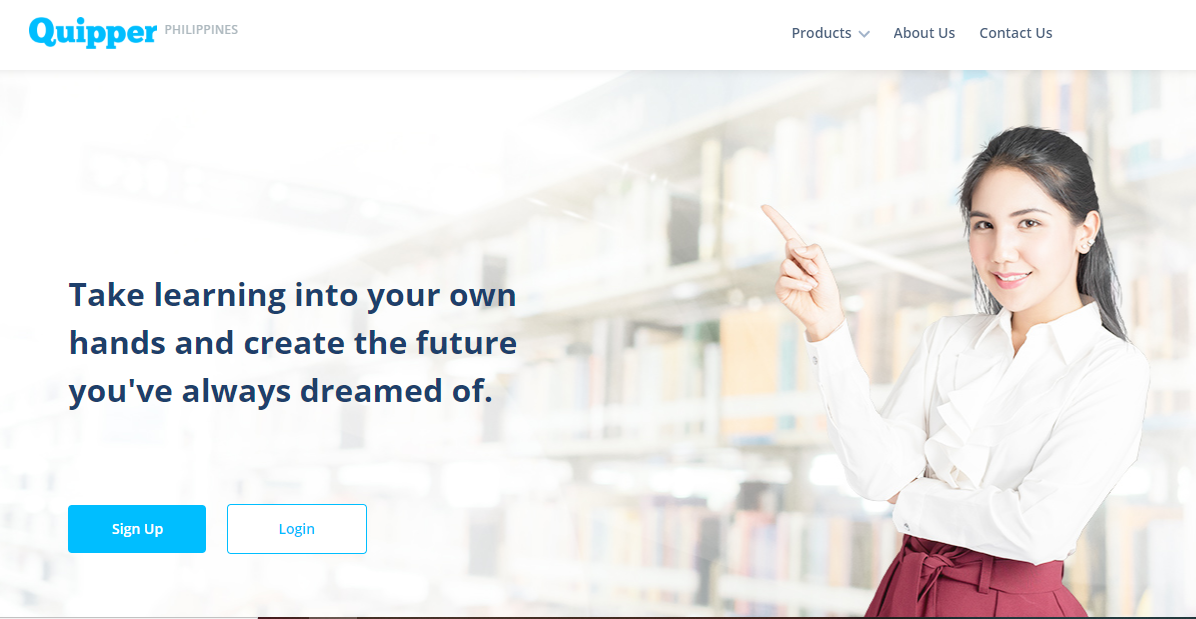
It is an Online Learning Platform and Video which supports students and teachers in many countries. Quipper is an education technology company that provides e-Learning, coaching, tutoring, and assessment services for K-12 in Japan, Indonesia, the Philippines, and Mexico. The company's primary service is an online learning management system, which is used in different ways in each country where it operates.
|| How Can I access Quipper? ||
Quipper can be accessed through app, which is available for Iphone and android. You can also access it via internet site to save you some storage space if you don't want to download it. Although, I would recommend downloading the app on your phones so that you can be notified immediately if there are any new lessons or quizzes that need to be answered or studied. It is a very useful and handy app especially for online learning, it is not that complicated to use and it doesn't consume a large amount of space so you don't have to worry about it eating away your storage space.
|| How does Quipper work? ||
Through the different educational apps that I have encountered, Quipper is one of the most useful and effective apps for learning. I have been using Quiper for my online classes ever since I was in second-year high school. It makes learning and passing assignments a whole lot easier especially if your subject teachers would opt to use this platform for your online classes.
Now, I'll be giving you a quick tour on how Quipper works for those who are new to this platform.
Each subject has their own class code. What is a "class code"? Basically, it serves as password or code in order for a student to enter a certain class. Once you have entered the class code, you will be notified if you have any assignments or lessons that need to be viewed or answered. The teachers will be the ones to give out their class code for their subject. Where can I put in my class code? Once you have received it, you proceed to your profile and click on the "class list" and at the bottom you enter your class code. The "class list" is where you can see the number of classes you are enrolled in and the number of students per class.
TIP#1: Once given the class code, enroll yourself immediately so, you will be kept updated on the latest assignments or lessons. There are instances where the subject teacher would have already posted a few assignments in your "to-do list".
|| Quipper Icons ||
I don't know the exact name for these but I refer to them as my "Quipper icons". What are these icons for? These are the different parts of Quipper that organizes your assignments or lessons that need to be done, messages from subject teachers, overdue assignments and more.
Now, In your home page, you will be able to see the to-do list, videos you have recently watched on Quipper, courses and your class activity scoreboard. What is the "to-do list"? It consists of all the lessons and assignments posted by your different subject teachers. Each task has a timer set to it, this will serve as the number of days left until the deadline is reached. Here is an example of what it looks like:
The day and month indicated is the deadline date of the assignment & shows how many topics, lessons, or assignments are contained in it. When you have accomplished the task, you will be able to see your score percentage out of 100%. Now, when you're done you have the option to review and redo the quiz or leave it as is, the first-take will be the score that is going to be recorded. A crown icon will appear if you have perfected the task but, receiving a check mark means you have not achieved a perfect sore.
What I love about Quipper is that teachers can upload their PPT presentations, lesson guides, and short videos to help explain to the students the content of a certain lesson. If you've chosen to watch the video, it will appear in your home timeline under "continue watching" to help you keep track of the videos you have watched without having to go through each lesson just to look for it. You can also download the guides and PPT presentation for easier access when studying for an upcoming test.
TIP#1: Make sure to complete the given task before the deadline so that it will not be marked or submitted as late. Overdue and completed works can be found in the "to-do list" icon. It is better to have it done and passed early rather than having to wait for work to pile up and be forgotten.
|| Types of Quipper Tests ||
There are three types of Quipper tests. There is the exam type, the quiz type and the essay type.
In the exam type of quiz, you will not be able to see how much you have scored and if the answers you have picked are correct or wrong. Once you have submitted the test, you cannot retake it again as it is an exam. You will be notified of your score by your subject teacher.
The quiz type of exam allows you to see whether you have picked the wrong or correct answer after clicking the "next" button, after the quiz has been completed you will immediately see your test results and how many times you have taken the test.
The essay type is meant for writing essays, the subject teacher will hand you the link for it. It is still a part of Quipper but the option to open it is not present in the site not unless you have been given the link or address. It is similar to the exam type in terms of submitting and receiving of the score. The word count and mechanics with the overall total can be seen upon opening the essay or document.
TIP #1: If ever there is a power outage or issue in regards of the internet, Quipper automatically saves your data. You would not have to worry about having to start from the beginning or losing track of your answers. Quipper also carries an offline mode or feature, this is very handy especially when encountering weak internet connection. I have not tried the offline feature yet but it was explained that you can access that by loading at least the first page of that course or assignment.
TIP #2: Having a hard time answering? No worries, you can jump from one question to another by looking through the number of test questionnaires on the right side of the test or on the app. If you have not submitted the test yet and is unsure of your answer you can always go back and answer it, this is only applicable on exam types and essay types.
|| Advantages of Quipper ||
Now, let's move on to the advantages of using and having Quipper. I have written these based on my experience on using Quipper for almost three or four years. I added this part to give a fresh perspective to those who are new to this E-learning app.
1. Easy Access to Notes- The ppts and study guides are only one download away. This makes studying and learning a whole lot easier since the files can be accessed anywhere at anytime. It is very handy and useful since I don't have to worry about where and how I can make notes to use for studying.
2. Offline & Online mode available - Have internet connection issues? You don't have to worry because Quipper does not eat up that much data while you answer your test questions, it also has a feature known as the "offline mode". This particular feature is a big help especially when the signal strength is not as strong or if it constantly fluctuates. Quipper has downloadable content which makes studying offline easier although stable internet connection is needed in order to fetch the content from the server.
3. User-Friendly
- The app is simple and easy to use. It does not have complicated functions that would take forever to try and understand. It can easily be mastered in less than 30 minutes.
|| Conclusion ||
Quipper is one of the best apps that I have encountered that helped me deal with online classes. It is easy to use and to understand. Studying and taking notes became a whole lot easier since ppts, videos, and study guides are attached to the lesson for me to better understand it. The app helps me keep track the assignments that I need to do and when I need to pass it. I love how they added an offline feature to cater to those who find it hard to receive stable internet connection. Overall, I would rate the app 8/10 for its service and user-friendless.
I hope this will help you understand and see the benefits of using this app. Constructive comments & suggestions are always welcome. I will be posting again sometime soon this week, don't forget to follow my socials to be kept updated on the latest. See you until then!
|| CHECK OUT MY OTHER BLOGS ||
- Follow my Socials:
- Quality Earphones on Sale!!
- Must Have Apps for Online Classes